



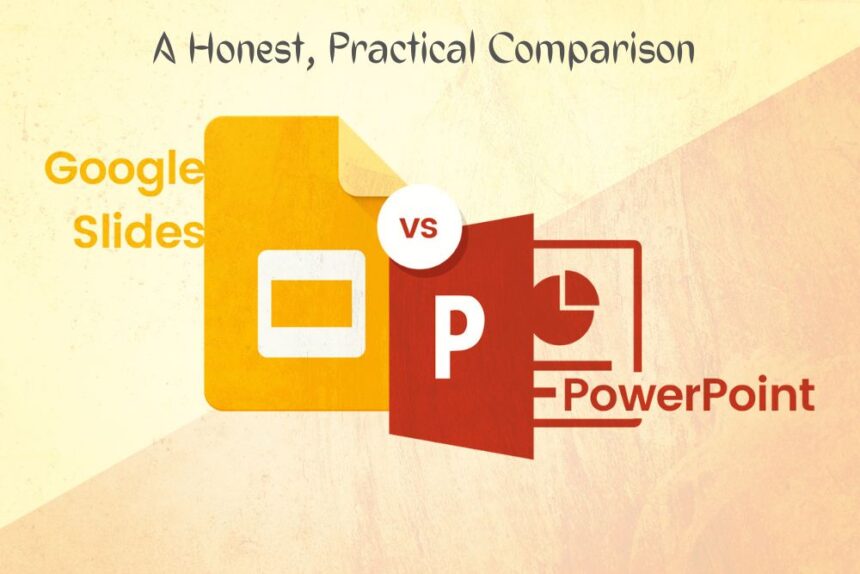
If you’ve ever wondered whether Google Slides is the same as PowerPoint, you’re not alone. Millions of students, professionals, and educators ask this question every day — and the honest answer is: they’re similar, but not the same.
Both tools let you build slide presentations. Both have templates, animations, and the ability to add images, charts, and text. But under the hood — and in the details that actually matter for daily work — Google Slides and Microsoft PowerPoint are built on different philosophies, and that shapes almost everything about how they work.
Let’s break it down, clearly and honestly, so you can make the right choice for your needs.
What Is Google Slides?
Google Slides is a free, browser-based presentation tool that’s part of Google Workspace (formerly G Suite). You don’t need to install anything — just open a browser, sign in to your Google account, and start building. Every change you make is saved automatically to Google Drive, which means you almost never lose your work.
Because it lives in the cloud, Google Slides makes real-time collaboration incredibly easy. Multiple people can work on the same presentation at the same time, leave comments, and see each other’s cursors moving around the slide. For teams that are spread across different locations, this is a genuine game-changer.
What Is Microsoft PowerPoint?
Microsoft PowerPoint has been the industry standard for presentations since the late 1980s. It’s part of the Microsoft 365 suite and has historically been a desktop application, though Microsoft has since added a web version and mobile apps.
PowerPoint is packed with powerful design features — advanced animations, more complex slide transitions, SmartArt graphics, and a deeper level of customization than most people ever need.
It’s the tool most corporate environments still rely on, and for good reason: when you need precise control over every pixel and every transition, PowerPoint delivers in a way that few tools can match.
Is Google Slides the Same as PowerPoint? Key Differences
So, is Google-Slides the same as PowerPoint? Not quite. Here’s a side-by-side look at where they differ.
| Google Slides |
| · Free with a Google account |
| · 100% browser-based, no install needed |
| · Real-time collaboration built in |
| · Auto-saves to Google Drive |
| · Simpler, cleaner interface |
| · Fewer animation options |
| · Works offline (with setup) |
| · Exports to .pptx format |
| Microsoft PowerPoint |
| · Requires Microsoft 365 subscription |
| · Desktop app (web version available) |
| · Collaboration via OneDrive/SharePoint |
| · More manual save management |
| · Feature-rich, complex interface |
| · Advanced animations and 3D |
| · Full offline capability |
| · Native .pptx format |
Where Google Slides Wins
If collaboration and accessibility are priorities, Google Slides is genuinely hard to beat. There’s no software to buy, no version to update, and no emailing files back and forth. You share a link, and everyone’s working in the same place at the same time. For students, teachers, and startups, that simplicity is worth a lot.
The interface is also noticeably cleaner. If PowerPoint can feel overwhelming with its dense ribbon menus, Google-Slides keeps things calm. You can build a polished, professional-looking deck without spending an hour figuring out where things are.
And then there’s the price: Google Slides is completely free. For anyone who doesn’t need the full power of Microsoft 365, that’s a compelling reason to give it a serious look.
Where PowerPoint Wins
That said, anyone who does heavy presentation work will eventually hit the ceiling of what Google Slides can do. PowerPoint’s animation engine is significantly more advanced — you can build sophisticated motion paths, trigger animations based on user interactions, and create presentations that feel close to interactive videos.
PowerPoint also has stronger support for design-heavy work. Its integration with fonts, SmartArt, and custom themes gives designers much more creative flexibility. If you’re producing presentations for high-stakes pitches or large conferences, that extra fidelity matters.
For anyone working in a corporate environment that runs on Microsoft 365, PowerPoint is often the default — and rightly so. The ecosystem is mature, IT support is standardized, and compatibility with other Microsoft tools like Word and Excel is seamless.
Compatibility: Can They Work Together?
One of the most practical questions people ask when comparing Google Slides vs PowerPoint is whether the two can play nicely together. The good news: mostly, yes.
Google Slides can import PowerPoint files (.pptx) and export back to the same format. In most cases, basic presentations transfer cleanly. However, complex animations, embedded fonts, and advanced design elements don’t always survive the conversion. If someone sends you a heavily designed PowerPoint file and you open it in Google-Slides, expect some formatting shifts — especially around fonts and transitions.
It’s not a dealbreaker, but it’s worth knowing if you’re regularly exchanging files between the two platforms.
Which One Should You Use?
The right answer depends entirely on your situation. Here’s a practical way to think about it: Choose Google Slides if you’re a student or educator, working in a small team or startup, need to collaborate in real time, or want a free and simple tool that gets the job done without a learning curve.
Choose Microsoft PowerPoint if you work in a corporate setting that already uses Microsoft 365, need advanced design and animation features, are presenting at a high-stakes event that demands polished visuals, or regularly work offline or on files that require maximum formatting fidelity.
The bottom line
Google Slides and PowerPoint are not the same — but they’re not as different as their developers might like to admit. Google Slides wins on accessibility, price, and collaboration. PowerPoint wins on depth, design control, and compatibility with enterprise environments. For most everyday users, Google Slides is more than enough. For professionals who live inside presentations, PowerPoint is still the gold standard.
Frequently Asked Questions
Is Google Slides the same as PowerPoint?
No, they are not the same. Both are presentation tools, but Google Slides is free, browser-based, and built for real-time collaboration, while PowerPoint is a more feature-rich desktop application under the Microsoft 365 umbrella.
Can I open a PowerPoint file in Google Slides?
Yes. Google Slides can open .pptx files. However, complex animations and custom fonts may not transfer perfectly, so review the file after importing.
Is Google Slides free?
Yes. Google Slides is completely free with any Google account, including Google Workspace’s basic tier.
Which is better for collaboration — Google Slides or PowerPoint?
Google Slides is generally better for real-time collaboration, since multiple users can edit simultaneously without any additional setup. PowerPoint offers collaboration too via OneDrive, but it’s not as seamless.
Does Google Slides work offline?
Yes, but you need to enable offline mode in Google Drive settings first. Once set up, you can view and edit presentations without an internet connection.